Apps For Windows 10
  • Apps For PC
    • Apps For Windows 10
    • WhatsApp For PC
  • Games For PC
    • Games For Win10
  • How To
  • Drivers for Windows 10
  • Windows 10 Wallpapers
  • Windows 10 Themes
    • Windows 10 media

How To Play PlayStation Games on PC Windows

Axee 0

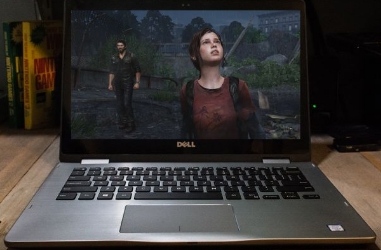
Sony has rolled out its game streaming service for Windows PCs. This makes it possible for Windows 10, Windows 7, Windows 8/8.1 (32-bit/64-bit) PC users to play latest PlayStation titles with all original features on desktop or laptop. Here we are going to show you how to play PlayStation Games on PC Windows via PS Now. PC Windows users don’t need to buy PlayStation console to play Sony PlayStation’s exclusive games like Uncharted, The Last of Us, God of War III and many other hit titles. PS Now streaming service has made it possible for PC users to play all PlayStation games.
play_playstation_games_on_pc

Sony is bringing PS Now for PC in US, Canada and UK. Residents of these countries will be able to play over 400 PS3 games on Windows desktop or laptop with updated stream of new titles being added to the library every month. PS Now subscription won’t break the bank, it is extremely affordable. PS Now subscription costs $19.99/£12.99 a month with unlimited access to all PlayStation games along with online networking features. See below how to setup PS Now on PC Windows 7/10/8/8.1 desktop or laptop and start enjoying best of PlayStation games at reasonable price.

1 – Install a Compatible Windows Version on PC
play_playstation_games_on_pc_windows

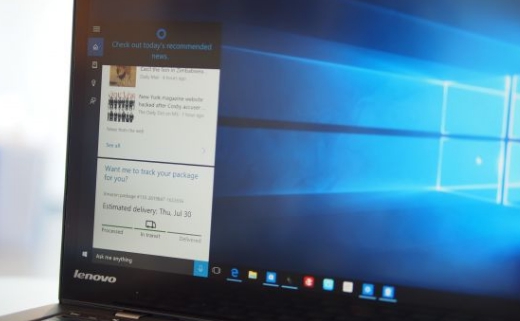
First of all make sure that you have updated version of Windows 10, Windows 7 or Windows 8.1 installed on PC. It could be either 32-bit or 64-bit version, PS Now works on both.

2 – Get a DualShock 4 Controller
play_playstation_games_on_winodws_pc

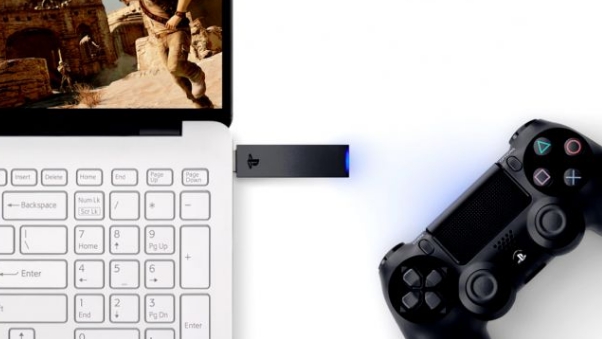
Other thing that you will be needing to play PlayStation games on PC is the DualShock 4 Controller. If you already own a PlayStation 4 console then you would have DualShock 4 controller that comes with it otherwise buy one. You can connect the DualShock 4 controller to PC via a Mini-USB cable or a new USB Wireless Adaptor from Sony.

3 – Make Sure WiFi broadband Service is Fast Enough to play Online Streaming

For streaming graphics heavy PlayStation 3 games from Sony’s servers over the internet, you will need to have a fast and stable internet connection to play games without buffering on PC.

Minimum 5Mbps or higher internet connection is what Sony’s is recommending for playing games smoothly. However, the more faster the broadband connection the smoother will be the game-play on PC. To be on the safe side, Sony’s suggests that you should have at least 10Mbps broadband connection.

There are various broadband speed testing websites that help you to find out the speed limit of your internet connection. Speedtest.net is the most reliable source of checking broadband speed, use it before streaming PlayStation games on PC.

4 – Subscribe to PS Now and Sign up for a PSN Account

play_playstation_games_on_pc_gudie

PS3 or PS4 owners already have a PSN account, if you don’t have one then sign up for the official account on Sony’s PSN website. You also need have PS Now subscription. For that, go to the PlayStation now website and click on ‘Start your trial’ option. You get seven days of free streaming which you can use to gauge your internet connection speed for streaming PlayStation titles online. Subscription starts after the end of the trial period.

5 – Download the PS Now App on PC

play_playstation_games_on_windows

You must have PS Now app on PC installed and running to be able to play PlayStation games via PS Now on PC. After downloading the app, open it and login to your PSN account and select a subscription package if you haven’t already signed up for one. Now plug your DualShock 4 controller to PC via the wireless adapter and start playing your favorite PlayStation titles on PC Windows.

Also See on Appsforwin10:

UNCHARTED Fortune Hunter for PC

How to Fix Netflix SSL Connection Error and HTTPS Warning on Windows 7, 10, 8 PC

How to Fix Netflix Error T1 on Windows (PC/Laptop)
Advertisement


Related Articles

Turn_off_App_Notifications_on_Windows10
How To

How to Disable App Notifications on Windows 10

Axee 0
How_to_Change_Windows_10_Themes_Wallpapers
How To

How To Change Windows 10 Theme, Wallpaper and Lock Screen

Axee 0
How_to_root_BlueStacks
How To

How to Fix ‘Parameter is Not Valid’ error on BlueStacks for Windows 10 PC/laptop

Axee 0


Categories


Must Reads

  • Download Windows 10 1909 ISO 19H2 Language Pack [October 2019]
  • Download Windows 10 version 1809 October Update Language Pack [ Direct Download Links]
  • Download FaceTime for PC Windows 10
  • MX Player for PC Windows 10
  • Download Windows 10 2004 ISO 20H1 Language Pack [April 2020]
  • VidMate for PC Windows 10


Archives


Recent Posts

  • Effective Use of Ultimate Abilities in Apex Legends: Tips and Strategies
  • Best Unblocked games for PC
  • Windows 11 Language Pack Download – [Direct Links]
  • The Most Popular Cricket Betting Apps
  • Everything You Need To Know For Code signing of Windows Drivers.
This website uses cookies to improve your experience. We'll assume you're ok with this, but you can opt-out if you wish.Accept Read More
Privacy & Cookies Policy

Privacy Overview

This website uses cookies to improve your experience while you navigate through the website. Out of these, the cookies that are categorized as necessary are stored on your browser as they are essential for the working of basic functionalities of the website. We also use third-party cookies that help us analyze and understand how you use this website. These cookies will be stored in your browser only with your consent. You also have the option to opt-out of these cookies. But opting out of some of these cookies may affect your browsing experience.
Necessary
Always Enabled
Necessary cookies are absolutely essential for the website to function properly. This category only includes cookies that ensures basic functionalities and security features of the website. These cookies do not store any personal information.
Non-necessary
Any cookies that may not be particularly necessary for the website to function and is used specifically to collect user personal data via analytics, ads, other embedded contents are termed as non-necessary cookies. It is mandatory to procure user consent prior to running these cookies on your website.
SAVE & ACCEPT
WallPapers:
  • 20 Awesome Mountain Wallpapers for PC Desktop/Laptop – Download

    0
  • Download PC Desktop Wallpapers Free – [Full HD Wallpapers for Windows 10/7/8/8.1 & MAC]

    0
  • Download Best Avengers Endgame Wallpapers. [ All HD 4K Avengers 4 Wallpapers]

    0
  • Download 4K HD Wallpapers for Windows 10

    0
  • 20 Awesome Nature & Landscape Desktop Wallpapers

    0
Guides:
  • How To Enable Dynamic Lock on Windows 10 PC/Laptop

    0
  • How to Fix Windows Update error 0x80070643. [April 2020]

    0
  • How to Save Money on Office 2016 for Windows 10

    0
  • How to Fix Netflix SSL Connection Error and HTTPS Warning on Windows 7, 10, 8 PC

    0
  • How To Install Third-Party Themes on Windows 10 (32-bit/64-bit)

    0
Best Games:
  • FIFA 16 Ultimate Team for PC Windows 10

    8
  • Disney Magic Kingdoms for PC (Windows & Mac) – Download

    4
  • Download and Install APEX LEGENDS for PC Windows 10 with EA Game Link.

    2
  • Summoners War for PC Windows 10

    2
  • My Little Pony Puzzle Party for PC Windows & MAC – Free Download

    1
Best Apps:
  • Download Bluestacks for Windows 10 (32-64 bit) Full Free Download.

    25
  • Download Periscope for PC Windows 10.

    10
  • FIFA 16 Ultimate Team for PC Windows 10

    8
  • ComboFix for Windows 10

    5
  • ShowBox for PC Windows 10, 8, 7, XP & Mac.

    5
  • About
  • Contact
  • Privacy Policy
  • Disclaimer

Copyright © 2026 | Apps For Windows 10 by Axee